Everyday modules
Cash registers
Shifts, cash withdrawals and deposits, the X report and the Z close, and several cash registers.
What it is for
A cash register is a point of payment: the drawer of a counter, with its own cash. A cashier opens it, sells on it during their shift and closes it by counting the money. What is counted stays in the cash register for the next shift, so the cash register never loses track of what it holds.
There are two screens, both in the Collections group:
- Cash: your open shift, its movements and the Shift history.
- Cash registers: every cash register of the business, who has each one open and its cash.
The first day step by step (open, sell, close) is in Your first day. This page covers everything else.
Before you start
- Record payments to open and close a cash register and record cash withdrawals and deposits.
- Configure the company to create, edit and deactivate cash registers in Cash registers.
- Void invoices to void a cash withdrawal or a cash deposit, and View reports to see the Shift history.
Without an open cash register there are no sales, with any payment method: the charge button says Open a cash register to sell. Each invoice belongs to the shift it was sold on.
The rules
- Each cash register has one open shift, and each cashier opens one cash register at a time.
- When opening, you count the cash. If it does not match what the cash register held at its last close, the difference is recorded as short or over.
- No more money ever leaves a cash register than the drawer holds, whether it is a cash withdrawal, an expense, a supplier payment or a bank deposit.
Open your shift
Open from the point of sale or from Cash
In the bar at the top of the Point of sale (POS) or of Cash, click Open cash register.
Choose the cash register and count
Choose a cash register lists only the free, active cash registers; if there is only one, it comes selected (a new US company starts with Main register). Type the Counted cash: Pixel One tells you what the cash register held and whether it is over or short. Click Open cash register.
During the shift
Cash withdrawals and deposits
Any cash that leaves or enters outside a sale is recorded with Cash withdrawal / deposit, in the same bar:
- Type: Cash withdrawal or Cash deposit.
- Amount and Reason: "paid for water", "the owner brought change".
- Ledger account (optional): where the money goes. Left empty, a cash withdrawal goes to General expenses and a cash deposit to Other income.
Click Record.
Moving cash between cash registers
On the cash register that hands it over, record a cash withdrawal and tick Goes to another cash register. On the one that receives it, a cash deposit ticked Comes from another cash register. The money stays in transit between the two and counts as neither an expense nor income.
Your shift on screen
Cash register shows the Opening float, the Cash sales (with collections), the Cash drops and what is Expected in the drawer, and below, the Shift movements: each sale, collection, cash withdrawal, cash deposit, expense or deposit with its time and reason. A cash withdrawal or a cash deposit is voided from its row: the money comes back through your cash register and its journal entry is reversed.
The X report
To see how you are doing without closing, in Shift history click the print button (Print closing report) of your open shift. Out comes the X report: the shift so far, by payment method, without closing it.
Close the shift
Count the drawer
Click Close cash register. You see what is Expected; type the Counted cash and Pixel One tells you whether it Balances exactly, is over or is short. Explain the difference in Notes if needed and click Close cash register.
Print the Z close
Closing opens the Z close by itself in another tab, ready to print. The shift turns Closed in the Shift history, and its print button prints it again whenever you want. The Z close has the float, each kind of movement, what was expected, what was counted, the difference and what was sold by each payment method, card and transfer included. It prints on 80 mm.
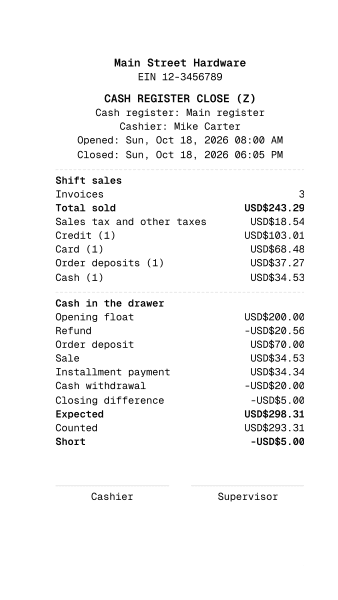
Cash close (Z)
80 mm · PDF
Open the PDF
Several cash registers
Cash registers is for whoever runs the business. Every company starts with one cash register, and you can have as many active ones as your plan allows (10 on the Profesional plan; deactivate one to make room).
At the top you see how many cash registers there are, how many are Open now and the Cash in all cash registers. Each row shows its Status, its Shift (who has it open and since when) and its Cash.
Create another cash register
Click New cash register and type its Name (for example, "Cash register 2"). If you have more than one branch, choose the Branch: the cash register sells from its stock. In This cash register's printer you choose the paper for invoices sold on it (80 mm, 58 mm, Letter or A4), or The company's. Click Create cash register: it can now be opened from the point of sale.
Edit or deactivate it
In each cash register's menu: View movements, Edit (its ledger account is renamed along with it) and Deactivate or Activate. An open cash register cannot be deactivated or moved to another branch, and an inactive cash register is never offered to a cashier.
Check its history
View movements opens the cash register's page: the Cash now, its shift, every movement of all its shifts (filtered by type and date, and exported to CSV) and the list of Shifts, each with Print closing report.
Each cash register has its own account in the chart of accounts, under Cash registers: the books know how much is in each one.
Common mistakes
- "There are no free cash registers." They are all open or deactivated. Ask for the other one to be closed, activate one or create another in Cash registers.
- "I do not see my cash register in Choose a cash register." Someone else has it open, or it is inactive.
- "It will not let me take out that money." A cash withdrawal, an expense or a deposit cannot be larger than what is in the drawer.
- "I cannot deactivate the cash register." It has an open shift: close it first.
- "I do not see the Shift history." It needs the View reports permission; the close can also be reprinted from the cash register's page in Cash registers.
Next step
Take the cash to the bank with a cash register deposit: Banks and payment methods.