Getting started
Your first day
Open the cash register, sell and close the shift with the Z report.
What it is for
This is the daily cycle at the counter: open the cash register with the cash in it, sell, take money out or put it in when needed and close the cash register by counting the drawer. The close gives you the Z report, with what was sold by payment method and the difference between what should be there and what you counted.
Before you start
- Products in the catalog (Load your data).
- The Record payments permission to open and close a cash register, and Invoice to sell. The Cashier template has both.
- A free cash register. Every company starts with one; if you have more checkout points, create them in Collections, Cash registers, with New cash register.
Without an open cash register there are no sales, with any payment method: the charge button says Open a cash register to sell. Each invoice belongs to the shift it was sold in.
Open the cash register
Go to the point of sale
Open Point of sale (POS) in the Sales group. If you have no open cash register, the bar at the top offers Open cash register.
Count the cash and open
In Choose a cash register pick yours (if only one is free, it is already chosen). Count what is in the drawer and type it in Counted cash. Pixel One tells you how much the cash register should hold since its last close; if it does not match, the difference is recorded as short or over.
Sell
Build the ticket
Scan the barcode or search for the product in Search product, code or scan... (F2). Each product goes to the ticket on the right.
Charge
Click Charge (F9). Cash comes selected, with the cursor in Received: type what the customer gave you and Pixel One works out the Change. Exact and the quick bill buttons fill in the amount in one tap. Click Confirm.
Print and keep going
The invoice is issued. Click Print for the ticket, Print on sheet if the customer wants it on a sheet, or New sale to keep going.
Everything else about charging (card, transfer, credit, split payment, discounts) is in Point of sale.
During the day: cash withdrawals and deposits
When money leaves the drawer outside a sale (you paid for water, took cash to the bank) or comes in (the owner brought change), record it with Cash withdrawal / deposit: the Type, the Amount and the Reason. That way the close balances.
To move cash from one cash register to another, make a cash withdrawal marked Goes to another cash register and, at the other one, a cash deposit marked Comes from another cash register. It does not count as an expense or as income.
In Collections, Cash register you see your shift: the Opening float, the Cash sales, the Cash withdrawals and what is Expected in the drawer, with every movement.
Want to see how you are doing without closing? In Shift history, the print button of your open shift prints the partial count (X).
Close the cash register
Count the drawer
Click Close cash register. Count the cash and type it. Pixel One compares it with what is Expected and tells you whether it Balances exactly, or how much is over or short. Add a note if the difference needs explaining.
Print the Z
The closed shift has its Z report: the shift's sales by payment method, the cash movements and the difference. Closing opens it by itself in another tab, ready to print. To print it again, in Collections, Cash, click Print closing report (the printer icon) on the shift's row. What you counted stays in the cash register for the next shift.
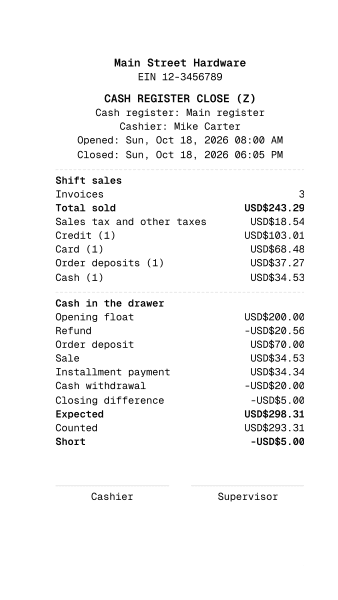
Cash register close (Z)
80 mm · PDF
Open the PDF
Common mistakes
- "The charge button says Open a cash register to sell." Open your cash register in the bar at the top of the point of sale.
- "There are no free cash registers." They are all open or deactivated. Each cashier opens one cash register at a time and each cash register has one open shift: ask them to close the other, or create another cash register in Cash registers.
- "It will not let me take that money out." A cash withdrawal cannot be larger than what is in the drawer.
- "I am over or short at closing." Check the shift's movements in Cash: it is almost always an unrecorded cash withdrawal or wrong change.
Next step
Learn the whole point of sale: customers, discounts and every way to charge.