By type of business
Auto repair shop
From the car that arrives to the one that leaves: check-in, pickup receipt, estimate, approval and invoice.
What it is for
This guide follows a car from end to end: it arrives at the shop, it is checked in with its photos, the customer takes their pickup receipt, it is diagnosed, estimated, the customer approves, it is repaired and, when they come back, it is delivered and invoiced. Everything lives in a work order, which is an order with a vehicle: it has stages, an estimate, an approval, parts, photos and, at the end, its invoice.
This is how each order moves across the board:
Before you start
- A company created with the auto repair business type. If your menu does not show Work orders, your company has another business type: write to support.
- Your labor services and your parts in the Catalog (Load your data).
- Your technicians as members of the company (Invite your team): they appear in Technician.
- An open cash register to deliver and charge (Your first day).
Your typical day
- A customer arrives: you check in the vehicle and give them the intake sheet with their pickup receipt.
- The technician diagnoses; you build the estimate and the customer approves it.
- Missing parts are bought and the car is repaired. The order is Ready.
- The customer comes back: you scan their receipt (or find them by plate or name), deliver and invoice, and charge.
The board
Work orders, in the Sales group, opens the board with each car in its stage: Received, Diagnosis, Awaiting approval, In progress and Ready. Below it, Recently delivered. Filter by technician with All technicians.
1. Check in the vehicle
Find the car or register it
Click Check in vehicle. Search by plate, make, model or owner. If it is the first time, click Register a vehicle and choose or create the customer: the walk-in customer cannot keep vehicles.
The vehicle's details
Plate, Make, Model, Year, Color, the Mileage and the VIN (optional, 17 characters). The plate finds it later in the shop, at the point of sale and in the orders.
The issue, the mileage and the promised date
- Reported issue: what the customer says, in their words: "noise when braking".
- Mileage in: Pixel One warns you if it is less than the last reading.
- Promised for: when you will hand it back.
- Technician: who works on it (or Unassigned).
- Notes: what is left in the vehicle, visible dents, keys.
Click Open order. The estimate is built after the diagnosis.
Take the before photos
The order opens on its page. In Vehicle photos, choose the Stage (Before, During or After), click Add photos and give each one a description if you like: "scratch on the rear right door". Up to 20 per order.
On a phone, Add photos opens the camera: take them next to the car.
TipThe Before photos are your proof of how the car came in if the customer later claims a damage. The printed estimate and repair order carry them.
2. The intake sheet and the pickup receipt
On the order page, Intake prints the sheet the customer signs when leaving the car: their details, the vehicle, the mileage, the issue and the signatures. At its foot, past the cut line, comes the pickup receipt: the shop's name and phone, the order number in large type with its barcode, the vehicle and the promised date. Cut it off and give it to the customer: they bring it to pick up their car.
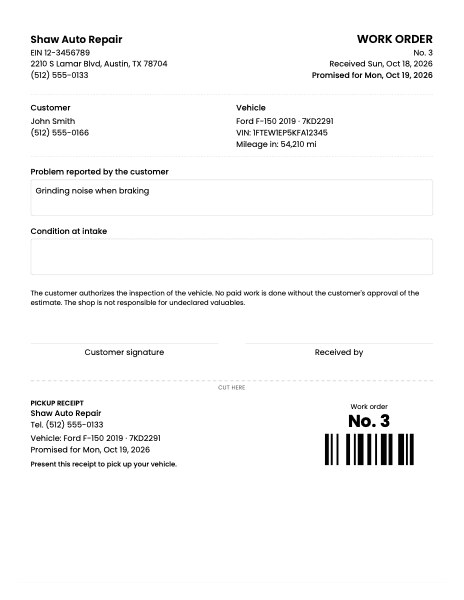
Intake sheet with pickup receipt
Letter · PDF
Open the PDF
If you have a thermal printer, Pickup receipt prints just the receipt on 80 mm, like a ticket.
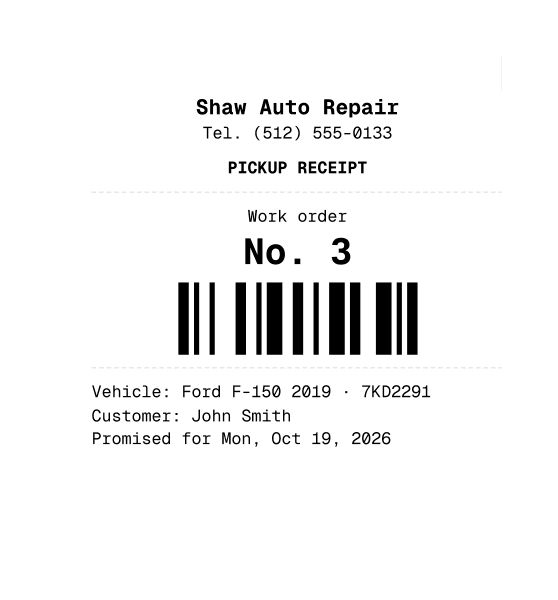
Pickup receipt
80 mm · PDF
Open the PDF
3. Diagnosis
In the Shop panel on the order page, click Move to diagnosis. The technician writes in Diagnosis what they found and recommend; it saves on its own. Change the Technician if needed.
4. Estimate: labor and parts
Build the estimate at the point of sale
Click Labor and parts. The order opens at the point of sale: add the labor services and the catalog parts as in any sale, and save it. Nothing is charged yet.
Buy the part you do not have
If the part is not in your inventory, in Parts bought for the job click Buy part:
- the Supplier and the part (from the catalog, or New part (not in the catalog));
- the quantity, the Unit cost, before tax, the Invoice tax and the Supplier invoice;
- the Customer price, per unit. Pixel One shows you how much you make per unit and the margin.
Click Buy and add: the part is owed to the supplier and added to the order at its own price. On the ticket it is marked as bought for the order.
Request the approval
Click Request approval: the order moves to Awaiting approval. Print the Estimate for the customer, or read it to them over the phone.
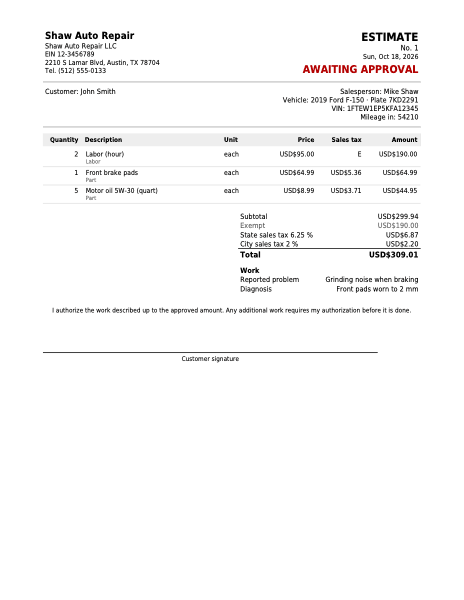
Estimate
Letter · PDF
Open the PDF
5. Approval by signature or by phone
Click Approve estimate. Type who approved it in Approved by and choose How they approved:
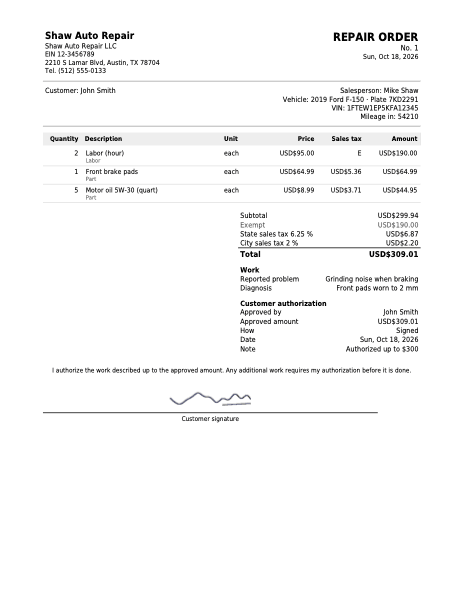
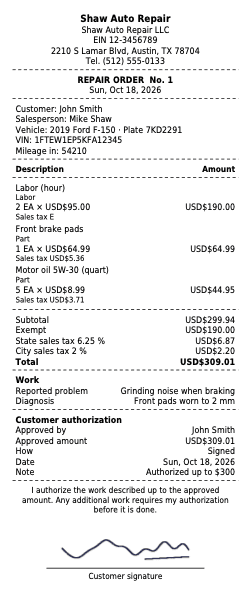
- Sign here: the customer signs on the screen with a finger or the mouse. The signature is printed on the order.
- By phone, By email or In person, no signature, with an optional Note: what the customer said.
Click Approve. The approved amount, the method and the date are recorded, and the order moves to In progress.
If the total goes over the approved amount (another part turned up), the order goes back to Awaiting approval and needs approving again. That way the customer never pays for something they did not authorize.
6. Repair and mark ready
While the work goes on, keep taking During and After photos. When the car is finished, click Mark ready: the order moves to Ready. If something is missing, Send back to the shop returns it to In progress.
7. The customer comes back
Scan the receipt's barcode:
- at the point of sale, with an empty ticket: the order is loaded to deliver and invoice;
- or on the board, in the search box: the order with that number opens.
On a phone, the board is shown in one column:
8. Deliver, charge and record who takes it
Charge
At the point of sale, check the ticket and click Charge (F9). For a card, charge on your terminal (Verifone or another) and copy from the slip the brand, the Last 4 digits and the Authorization code.
Fill in the Pickup box
The same payment has the Pickup box:
- Picked up by: it comes with the customer's name; change it if someone else collects the car.
- Showed the pickup receipt: it comes on. Turn it off if they did not bring it and type in Note how you identified them: "Delivered without the receipt, identified by driver's license ...".
Click Confirm.
Print the invoice and the repair order
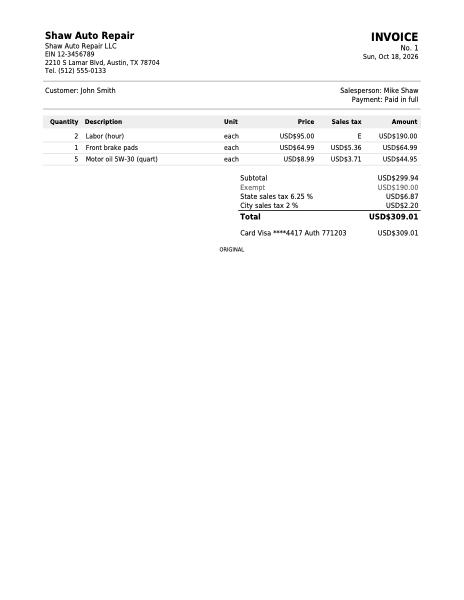
The invoice comes out like any sale. On the order page, Repair order prints the work done, each line marked as part or labor, the diagnosis, the approval with its signature, the before photos and the signatures.
The order is delivered
The order moves to Delivered and its page says Picked up by and whether it was With receipt or Without receipt, with the note.
The vehicle's history
On the customer's page, the Vehicles tab shows each car with its last mileage reading. Each one has Orders, with everything done to it, and Photos, with the photos of all its orders by date.
A part left over
If you bought a part for the order and it was not used, once the order is delivered (or cancelled) choose what to do with it in Parts bought for the job: To inventory to sell it later, or Write off as an expense. Pay opens the supplier payment.
By country
Mileage is in miles. Many states require a written estimate and the customer's authorization before work starts, and a new one if the amount goes up: that is what the Estimate, Approve estimate and the Repair order do, with their authorization text in English. Labor stays untaxed when the service carries no tax. See United States.
Common mistakes
- "The walk-in customer can't keep vehicles." Choose or create the customer before registering the car.
- "The order went back to Awaiting approval." The estimate went over the approved amount: approve it again.
- "I scan the receipt at the point of sale and nothing happens." The ticket must be empty. Clear it or use the board's search box.
- "I cannot find the order by phone." Type at least 7 digits; the format does not matter.
- "I cannot upload more photos." An order takes up to 20, and a cancelled order takes no new ones.
Next step
Review how to charge at the point of sale, or your country's rules: United States or Dominican Republic.