By type of business
Made to order
Furniture, bakeries, print shops and catering: the order's fields, deposits, delivery note and delivery.
What it is for
This guide is for the business that sells today and delivers later: the dining set made to measure, Saturday's cake with its message, the print shop's 500 flyers, a wedding's catering. The customer leaves a deposit, you prepare the order and, on delivery day, it is invoiced with what is left: in cash, by card, by transfer or on credit.
Everything goes through Pixel One's order. This page follows a furniture store's order from end to end; the order itself, with the quote that comes before it, is explained in Quotes and orders.
The business types it covers
Each type comes with the order's own fields that the business usually writes down. They are asked for when you save the order and printed on it.
| Business type | Order fields | It also comes with |
|---|---|---|
| Furniture store | Color / material, Delivery address | The retail basics |
| Bakery and pastry shop | Flavor, Message | Its catalog is called Menu; products without lots, to sell the day's bread |
| Print and screen-printing shop | Specifications | New items start as services |
| Catering and banquets | Guests, Venue | Its catalog is called Menu |
You can change these fields, turn them off or add others in Settings, Custom fields, Orders (Set up the company). Any other business can use orders too; it simply starts without fields.
The furniture store is retail, but it lives on made-to-order work, so this is its guide. The other stores are in Shops and retail.
Before you start
- The Invoice permission to save orders, and Record payments to take deposits.
- The customer created: the walk-in customer cannot keep orders. To deliver on credit, the customer needs credit on their record (Customers).
- An open cash register to take cash deposits and to deliver (Your first day).
Your typical day
- A customer orders something: you build the ticket at the point of sale, save the order with its delivery date and its details, and take the first deposit.
- While you prepare it, the customer brings more deposits; each one has its receipt.
- When it is done, you mark it ready and print the delivery note for whoever delivers it.
- On delivery day, you deliver and invoice: the deposits pay first and the rest is charged now or left on credit.
- In Orders and on Home you see what is delivered today and what is late.
1. Save the order with its first deposit
Build the ticket and choose the customer
In the Point of sale, add the products, choose the customer (F4) and click Save order (F6). If you had quoted it, open the quote and click Convert to order: it keeps its prices.
The date, the order's details and the deposit
The dialog shows the total and says the stock leaves at delivery. Fill in:
- Delivery date: tomorrow by default.
- Your business type's fields: the furniture's Color / material and Delivery address, the cake's Flavor and Message.
- Notes: what to remember when preparing or delivering it.
- Take a deposit now: turn it on, choose cash, card (with the slip details) or transfer (with the account and the receipt) and type the Deposit amount.
Click Save order.
2. Deposits while you prepare it
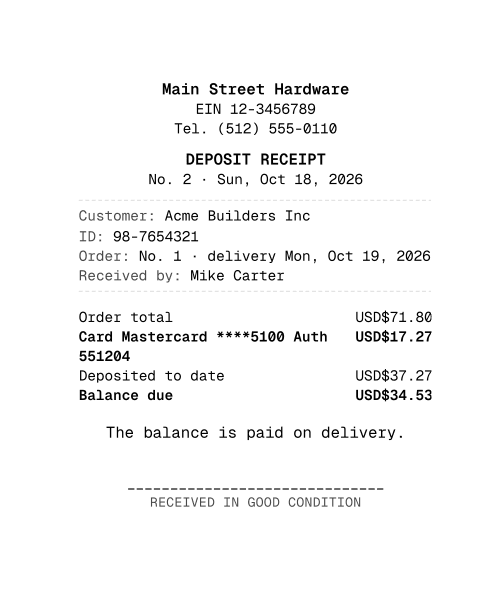
On the order page you see the customer, the delivery, the lines, the total, what is Deposited and the Balance due. Every time the customer brings money, click Record deposit; in the deposits list, Print receipt prints its proof on 80 mm.
Deposit receipt
80 mm · PDF
Open the PDF
If something changes (another color, another date), Edit opens the order in the point of sale. A deposit can never go over the balance due.
3. Ready and the delivery note
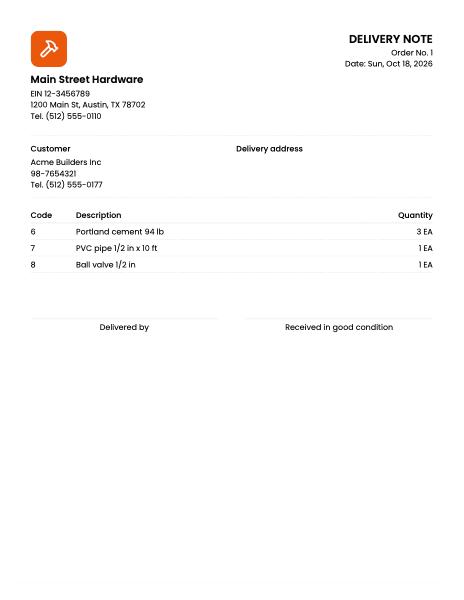
When the order is done, click Mark ready. If you deliver it to the customer's home, click Delivery note: it prints the sheet of what was delivered, without prices, for the customer to sign on receipt. It also carries the order fields you filled in (Delivery address, Color / material, Flavor, Message...), so they reach whoever delivers.
Order delivery note
Letter · PDF
Open the PDF
Print prints the full order, with its fields, its deposits and the balance.
4. Deliver and invoice
Open the delivery
On the order page, click Deliver and invoice. The order is loaded into the point of sale with its lines.
Charge what is left, or leave it on credit
In the payment, Order deposits appears as already paid and only the rest is asked for. Charge it like any sale or, if the customer has credit, choose Credit and set up the installments: the balance of a dining set, for example, in six installments. Click Confirm: the invoice is issued, the stock comes off now and the order becomes Delivered.
The orders list
Orders shows at the top the Pending, Due today, Late and Deposits received. Pending orders come first, by delivery date. An order past its date is marked Late: deliver it or change the date from Edit.
If the customer backs out, Cancel asks for a reason and how the deposits are refunded: store credit, cash, card or transfer. See Quotes and orders.
At a bakery, new products come without Tracks lots, so you sell the bread you bake the same day without entering it as stock first. If a product expires and you want to follow its dates (a packaged sweet, a drink), turn on Tracks lots and Perishable on its page: a product with lots is never sold without stock.
By country
Prices are typed without tax and the sales tax is computed on the delivery invoice. See United States.
Common mistakes
- "Save order does nothing." The order needs a customer: press F4 and choose one.
- "More than the balance." A deposit cannot go over the order's balance.
- "It does not ask for the color or the address." Those fields are turned off or your company has another type: check them in Settings, Custom fields, Orders.
- "It exceeds the credit limit." The rest of the order does not fit in the customer's credit: charge part of it now with Split payment or raise the limit.
- "Open the cash register before taking or returning cash." A cash deposit goes into your cash register: open it first.
Next step
The order with its quote, step by step: Quotes and orders. What happens to what was left on credit: Accounts receivable and collections.