Everyday modules
Invoices
View, print, delivery note, void, return, exchange and price correction.
What it is for
Every sale at the point of sale is an invoice. In Invoices you find them all, reprint them and do what happens after the sale: the delivery note, the return, the exchange, the price correction or the void.
Before you start
- View invoices to look them up and print them.
- Void invoices to return, exchange, correct or void. The Store manager template has it; Cashier and Salesperson do not.
- An open cash register when cash goes out or comes in (a cash refund, an exchange with a difference, voiding a cash sale).
The list
Invoices, in the Sales group, shows each sale with its number, Customer, Date, Salesperson, Payment method, Total, Balance and Status. Search by number, customer or tax ID and filter by status or dates.
The invoice page
When you open an invoice you see its Details, the Lines with their taxes, the totals, the Payments and, if it was on credit, the installment schedule with late fees. At the top are the actions: Print, Print on sheet, Delivery note, Return, Correct price, Exchange and Void.
Print opens the invoice ready for your cash register's printer (or the company's paper). At the top you choose another Paper, Download PDF or Open in a new tab. Print on sheet prints it straight on Letter or A4.
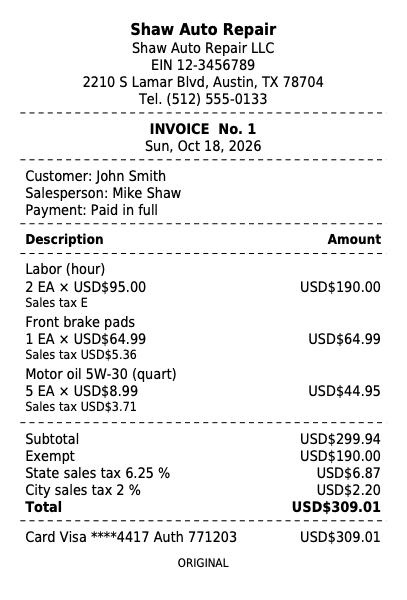
Invoice on a thermal printer
80 mm · PDF
Open the PDF
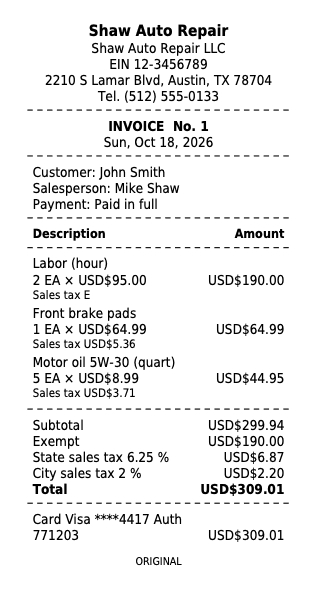
Invoice on a small thermal printer
58 mm · PDF
Open the PDF
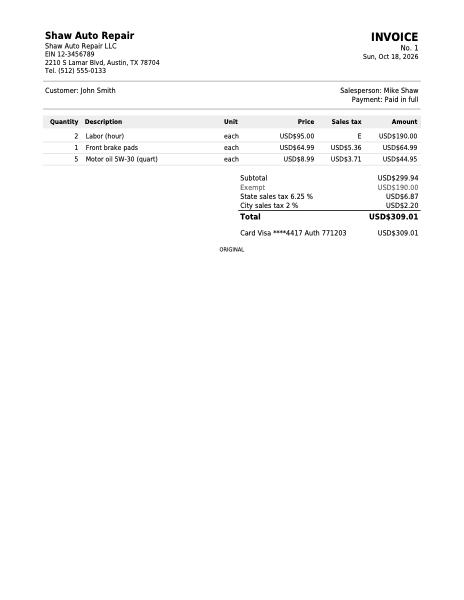
Invoice on a sheet
Letter · PDF
Open the PDF
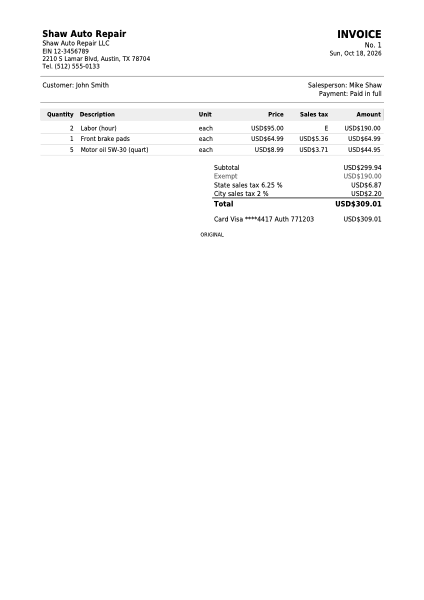
Invoice on a sheet
A4 · PDF
Open the PDF
On a thermal printer, in the print dialog pick the printer, the roll paper (80 or 58 mm) and 100 % scale. If it prints small, it is almost always the scale.
The delivery note
The Delivery note lists what was delivered, without prices, with room to sign. Use it when the goods leave with a courier or are delivered somewhere else.
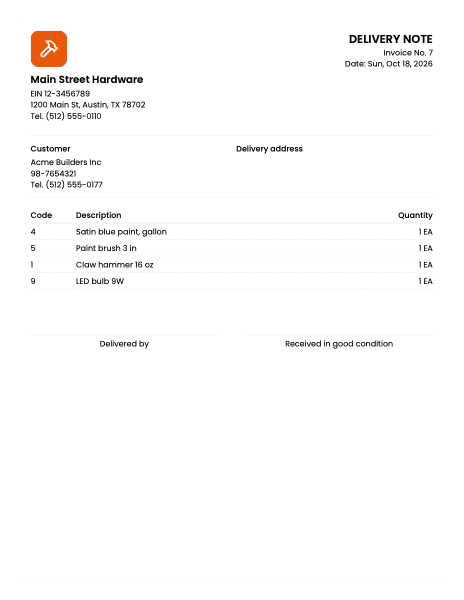
Delivery note
Letter · PDF
Open the PDF
Return
Open the return
On the invoice, click Return. Enter how much of each line comes back and tick Back to inventory if the product goes back on the shelf (it returns to its lot at its cost).
Reason and refund
Type the Reason and choose how the money goes back: Cash (out of your open cash register), Card, Bank transfer or Store credit for their next purchase. If the invoice was on credit, the return comes off the credit first. Click Record return.
The credit note
The return makes a credit note you can print. They are all in Returns, in the Sales group.
After the Days to return or exchange (in Settings, Operations), only an administrator returns or exchanges. Tick It is a warranty claim for lines still under warranty: they are accepted even after the deadline.
Exchange
Exchange is a return and a new sale in one step. Enter what comes back and, in Takes in exchange, search for what the customer takes. If the new items cost more, the customer Pays the difference; if less, the customer Gets back the rest. Click Make the exchange: you get the credit note and the new invoice.
Correct price
For when you overcharged and no goods come back. Click Correct price, enter how much comes off each line (taxes included), the Reason and how the money goes back. Click Record correction: a credit note of type Price correction is made.
Void
Void undoes the sale completely: the stock goes back to its lots, the cash leaves your open cash register and the credit is cancelled if no installment was collected. The Reason is required and stays in the history.
An invoice with returns can no longer be voided: make another return for what is left.
By country
The invoice prints each sales tax by its name and rate. A return gives back each tax's share, and the Taxes collected report subtracts it from the period.
Common mistakes
- "It will not let me void." The invoice has returns, or a credit installment was already collected. Use Return.
- "I do not see Return or Void." You are missing the Void invoices permission.
- "Open the cash register before..." A cash return or void needs your cash register open, because the money comes out of it.
- "The customer cannot keep store credit." The walk-in customer keeps no balance: choose another refund.
Next step
Sell now and deliver later: Quotes and orders.