Everyday modules
Quotes and orders
From the quote to the order with deposits, and on to deliver and invoice.
What it is for
Not every sale is paid for and delivered on the spot:
- A quote is a priced proposal. It moves no inventory and no cash, and keeps its prices while it is valid.
- An order is a sale agreed today and delivered later, with money in advance: the deposits. Saturday's cake, the sofa set aside, the custom-made uniform.
The full path is quote → order → deliver and invoice, but you can start at any of the three.
Before you start
- The Invoice permission to quote and save orders, and Record payments to take deposits.
- For an order, a customer: Walk-in customer keeps no orders.
- An open cash register to take cash deposits.
Quote
Build the ticket and save it as a quote
At the Point of sale, build the ticket as usual and click Save quote (F8). It gets its number and its Valid until date (15 days by default; change it in Settings, Operations).
Print it or send it
In Quotes, open the quote and click Print or Print on sheet. Your Quote terms are printed at the foot.
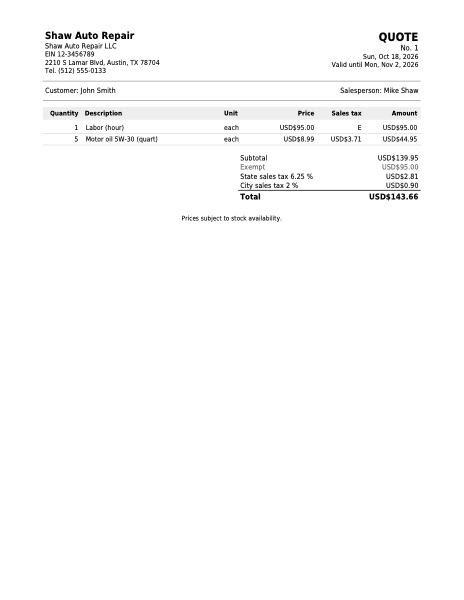
Quote
Letter · PDF
Open the PDF
When the customer accepts
- Invoice takes it to the point of sale at its prices to charge it now.
- Convert to order turns it into an order with deposits (below).
- Edit changes it while it is open. Cancel closes it with a reason.
- If it expired, Renew gives it today's prices and a new validity.
Each quote has its status: Open, Expired, Invoiced or Cancelled.
A quote does not set goods aside. Its page warns you if today there is not enough stock to invoice it, and it is checked again when invoicing.
Save an order
There are two paths:
- From a quote: Convert to order. It keeps its prices.
- From the point of sale: build the ticket, choose the customer and click Save order (F6).
The delivery date and the first deposit
The dialog asks for the Delivery date (tomorrow by default), the order's custom fields if you have any, some notes and, if the customer leaves money today, Take a deposit now: the amount and the method (cash, card with the slip details, or bank transfer with its receipt). Click Save order.
Record more deposits
On the order page you see the total, what is Deposited and the Balance due, and each deposit with who received it. Click Record deposit every time the customer brings money, and Print receipt to give them their proof.
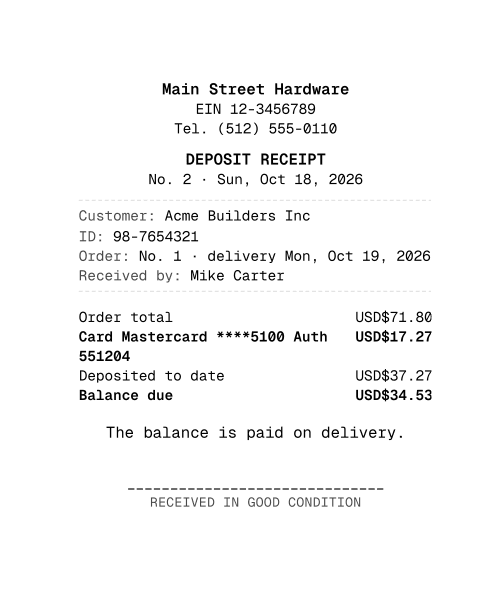
Deposit receipt
80 mm · PDF
Open the PDF
Mark it ready
When the order is prepared, click Mark ready. If it is delivered somewhere else, print the Delivery note, without prices, for them to sign on receipt.
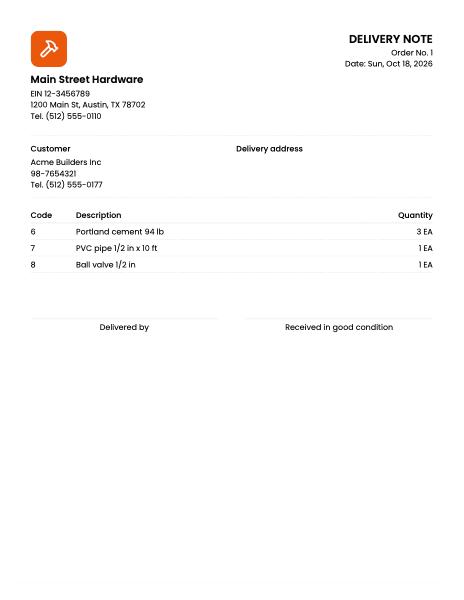
Order delivery note
Letter · PDF
Open the PDF
Deliver and invoice
Open the delivery
On the order page, click Deliver and invoice. The order is loaded into the point of sale with its lines.
Charge what is left
In the payment, Order deposits appears as already paid and only the rest is asked for, with any method, credit included. If the deposits cover everything, there is nothing more to charge. Click Confirm: the invoice is issued, the stock comes off now and the order becomes Delivered.
The orders list
Orders shows at the top the Pending, Due today, Late and Deposits received. Pending orders come first, by delivery date. Home also shows today's deliveries.
Cancel an order
Cancel asks for a reason and, if there are deposits, How the deposits are refunded: store credit for the customer's next purchase, cash, card or bank transfer. They are refunded in full.
Common mistakes
- "Save order does nothing." The order needs a customer: press F4 and choose one.
- "The deposit exceeds what is left." A deposit cannot go over the order's balance.
- "I cannot edit the quote." An invoiced, cancelled or converted quote can no longer be edited. If it was converted, edit the order.
- "Not enough stock to invoice it." Remove those lines with Edit or wait for goods to come in.
Next step
If you run a repair shop, the order becomes a work order with a vehicle: Auto repair shop.